The intent of this article is to detail the different ways to manage UPS® billing notifications. Optimum Parcel monitors all shipment dispute activity, so you don’t have to.
Pro tip
These notifications can be safely ignored. They don’t need to be sent to the Optimum Parcel team, as all related information is viewable online.
Turn off all notifications in UPS®
UPS® notifications can be turned off in two different locations.
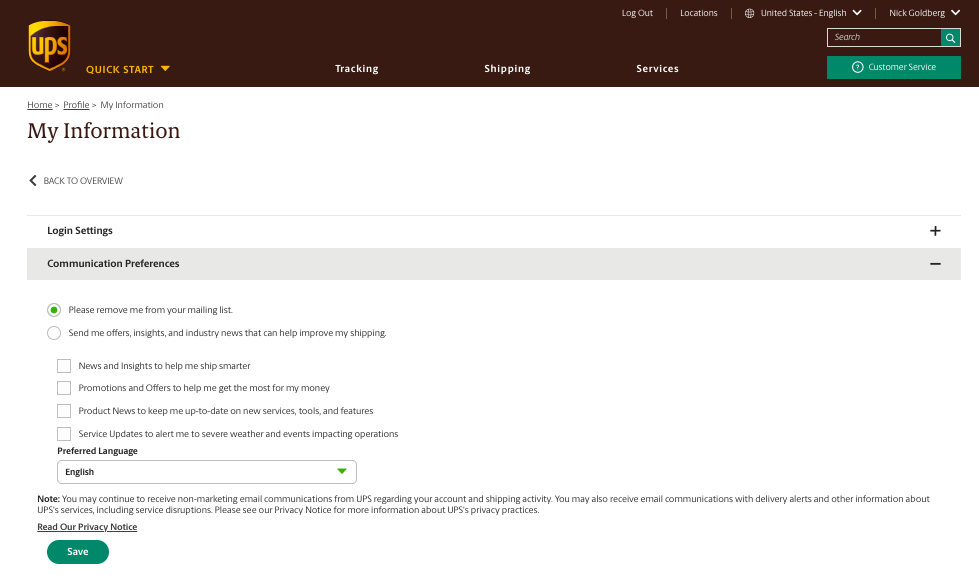
1. Within the My Information section of your UPS.com account.
Name (top right) > My information > Communication preferences
Name (top right) > My information > Communication preferences
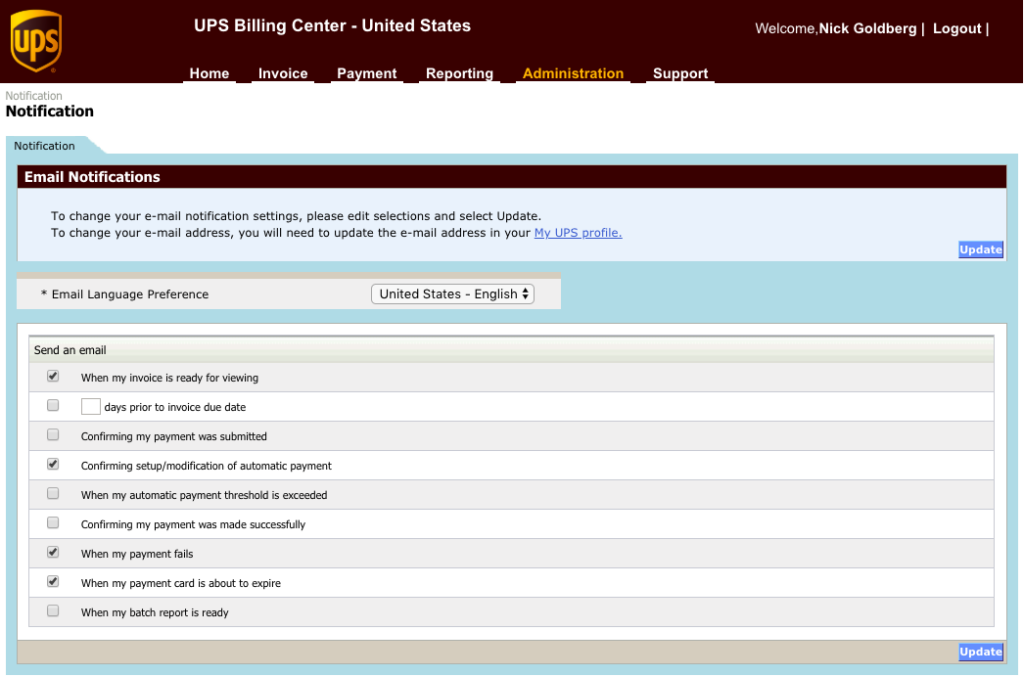
2. Within the Notifications section of Online Billing.
Administration > Notification
Administration > Notification
Create an inbox filter for dispute denials
When you turn on inbox filters, they run continuously and automatically in the background. There’s no additional work required once you have properly set up the filter criteria.
Gmail filter
You can manage all incoming mail using Gmail’s built-in filters.
Use a specific email to create a filter
- Open Gmail.
- Check the checkbox next to the email you want.
- Click More.
- Click Filter messages like these.
- Enter your filter criteria.
Outlook filter
Use a specific email to create a filter
- In your Inbox, choose the message you want to create a rule for, and then on the Home tab, in the Move group, choose Rules.
-
Do one of the following:
- Choose a suggested rule, choose a destination folder, and then choose OK to complete the assignment of a rule.
- Choose Create Rule and go to the next step.
- In the Create Rule dialog box, under When I get email with all of the selected conditions, select none or one or more of the available checkboxes.
- Under Do the following, select the check boxes for the action you want the rule to take when the specified conditions (criteria) are met.
- Select the Move the item folder check box.
-
Do one of the following:
- Choose Select Folder and pick an existing folder.
- Choose New to create a folder.
Pro tip
Use Advanced Options to add more conditions, actions or exceptions to the rule.
- Choose OK.
-
In the notification box, do one of the following:
- Choose OK.
- Select the Run this rule now on messages already in the current folder check box, and then choose OK.